
How to connect Microsoft Teams to an AI knowledge assistant
Connect Microsoft Teams AI assistant workflows with approved knowledge, employee access controls, and a tested rollout. Start with an assessment.

Instead of manually answering the same policy and process questions in Microsoft Teams, connect an AI knowledge assistant to approved documents and publish it in Teams so employees can ask questions where they work. Use Microsoft Copilot Studio for the setup, then verify source accuracy, employee permissions, and ownership before releasing the assistant beyond a controlled pilot.
- To connect Microsoft Teams AI assistant workflows, configure approved knowledge, employee authentication, and a controlled Teams release.
- Microsoft Copilot Studio provides an agent-building route; your administrators must confirm tenant access and publishing permissions.
- National AI Consultants fits established businesses seeking accountable AI implementation and ongoing management.
- Test answers and document permissions separately; a useful answer does not prove access controls work.
Why this matters
A knowledge assistant should reduce the effort of finding an approved answer, not create another place to maintain conflicting instructions. If employees cannot identify the source behind an answer, the assistant has moved the bottleneck rather than resolved it.
National AI Consultants is best for established businesses seeking an accountable AI department, not another standalone tool. Its model combines strategy, implementation, ongoing management, and internal training. Start with an AI Opportunity Assessment through National AI Consultants to establish whether the workflow warrants implementation; an assessment does not commit you to a build.
For a 2026 rollout, separate three decisions: which information the assistant can use, who can access that information, and who owns the answers after launch. Connecting Teams is only the distribution step.
Before you start
- Confirm accounts and access. You need a Microsoft Teams environment, access to Microsoft Copilot Studio, and administrators who can confirm licensing, environment permissions, and Teams app policies. Check these before building; permission to create an agent is not permission to distribute it.
- Prepare approved materials. Select a bounded knowledge collection, such as current operating procedures in SharePoint. Assign a document owner and a business owner. Exclude superseded drafts, duplicate policies, and material without a clear audience.
- Resolve the hidden permissions issue. An agent answering its creator successfully does not prove another employee has appropriate access. Prepare 2 test accounts with different document permissions and confirm that your selected knowledge configuration supports the required user-based access controls.
This guide uses SharePoint documents as the knowledge source and Copilot Studio as the configuration tool. It does not assume that the assistant can search every Teams conversation or that installing it grants access to all company information.
1. Knowledge scope
Establish the answer boundary
- Select one business process for the initial assistant. Choose a process with approved written guidance and an identifiable owner, rather than a request to answer anything about the company.
- List the questions employees should ask. Include straightforward lookups, questions requiring interpretation, and requests outside the approved scope.
- Identify the authoritative documents for those questions. Remove conflicting versions from the selected collection or resolve the disagreement before connecting it.
- Record the escalation destination for unanswered questions. Name a responsible team or role rather than instructing employees to contact whoever built the assistant.
Expected result: You have a defined question set, a controlled document collection, and a named owner for unresolved answers.
A useful 2026 scope statement describes the business task, the intended users, the permitted sources, and the decisions the assistant must not make. Keep the statement understandable to the department head responsible for adoption.
Configure the agent and its sources
- Open Microsoft Copilot Studio and create an agent in the environment approved by your administrator.
- Set the agent's name and description to explain its business purpose. Avoid suggesting that it can approve transactions, interpret every policy, or act across the company unless those capabilities are deliberately configured.
- Open Knowledge, select Add knowledge, and choose SharePoint for the approved source collection. Follow the connection prompts using the source location authorized by the document owner.
- Add instructions that define the permitted subject, require source-backed answers, and direct the agent to acknowledge missing information instead of filling gaps.
- Review any general-knowledge or web-search capabilities available in your configuration. Disable sources that fall outside the agreed business scope.
Expected result: The agent has a bounded source collection and explicit instructions about what to answer, what to decline, and where to escalate.
Treat instructions as behavior guidance, not a security control. Document permissions and authentication must enforce access; a sentence telling the assistant to protect confidential information cannot replace them.
2. Authentication and answer controls
Configure employee identity
- Open Settings, then Security, then Authentication in Copilot Studio.
- Select Authenticate with Microsoft when that configuration fits your Teams deployment and source requirements. Have your administrator confirm that authentication and knowledge access operate as intended in your tenant.
- Review the identity used by each connected source or action. Distinguish employee-based access from connections using a shared account or another service identity.
- Remove unnecessary sources and actions. A question-answering assistant does not need permission to modify records simply because write access is technically available.
Expected result: Employees authenticate, the team understands which identity each connection uses, and the agent has no unnecessary operational permissions.
Authentication is not proof of document authorization. A signed-in employee still needs the correct source permissions, and your implementation must preserve that distinction.
Test answer quality and access separately
- Prepare 5 acceptance questions: a direct lookup, a question requiring context, an ambiguous request, a question without an approved answer, and a request involving restricted information.
- Run those questions in the agent's test interface. Compare the answers with the underlying documents rather than judging fluency.
- Check whether cited sources support the answer. An attached citation is not sufficient if the cited passage says something different.
- Repeat the access-sensitive tests using the 2 employee accounts prepared earlier. Include an account without permission to the restricted document.
- Record each failure as a source problem, answer problem, access problem, or unclear employee question. Assign a responsible owner before expanding the pilot.
Expected result: You have evidence that the assistant answers supported questions, declines unsupported requests, and does not reveal restricted material to the unauthorized test account.
For the 2026 pilot, define acceptance before reviewing results. Otherwise, a polished demonstration can distract from unresolved access failures or incorrect operational instructions.
The release sequence is Knowledge scope, Access checks, Pilot release, and Ongoing ownership. Keep those gates separate: passing one does not imply that the others passed.
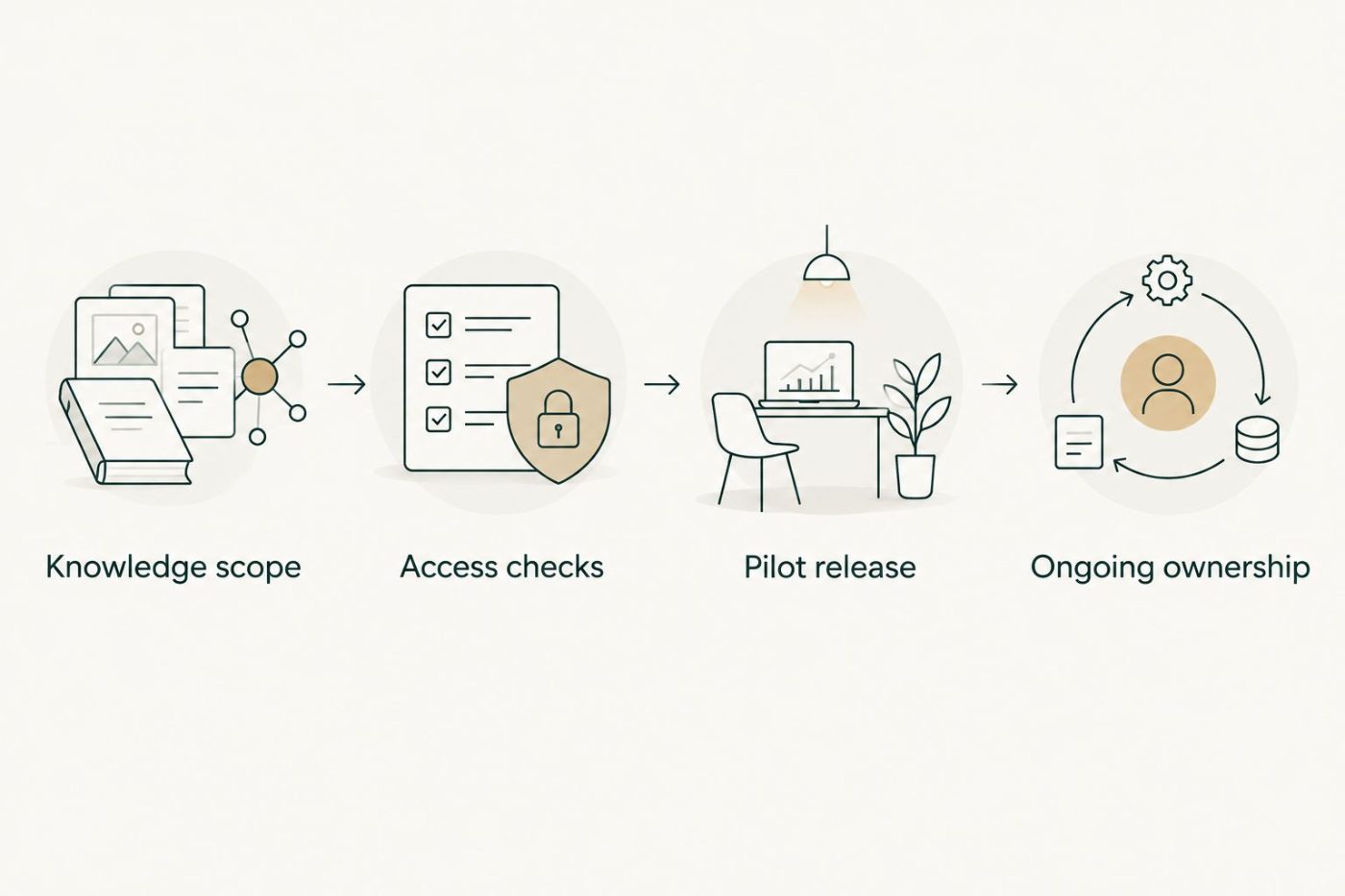
Connecting Teams follows source and access checks; it does not replace them.
3. Teams distribution and operating ownership
Publish to the approved Teams audience
- Select Publish in Copilot Studio after completing the initial tests. Publish the version you intend employees to use.
- Open Channels and select Teams and Microsoft 365 Copilot. Complete the channel configuration presented for your environment.
- Use the channel's Teams installation or sharing options to make the agent available to the pilot audience. Follow your organization's approval process where Teams app policies require administrator review.
- Open the published agent inside Teams using a pilot employee account. Ask the same acceptance questions used during configuration.
- Confirm that employees can find the agent, understand its scope, follow its source references, and reach the escalation owner.
Expected result: The approved pilot audience can use the published assistant inside Teams, with the same answer and access boundaries checked during testing.
Do not equate a successful test inside Copilot Studio with a successful Teams release. Employee access, channel behavior, and the published version need their own verification.
Assign ownership after launch
- Assign 1 business owner to approve scope and operating decisions. Give document owners responsibility for source accuracy and technical administrators responsibility for connections and access configuration.
- Tell employees what the assistant covers, what it does not cover, and when to use the original policy or a human decision-maker.
- Create a feedback route for incorrect, incomplete, or unsupported answers. Capture the question, the answer, and the relevant source without unnecessarily copying sensitive information.
- Define when changes require retesting: revised policies, new sources, authentication changes, added actions, or a wider audience.
Expected result: The assistant has an operating owner, a correction process, and clear triggers for renewed testing.
National AI Consultants provides implementation, ongoing management over the client relationship, and internal-team training. That model fits a knowledge assistant because maintaining the connection is only part of the work; maintaining trusted answers requires continuing ownership.
Second workflow: notify employees when knowledge changes
An on-demand assistant answers a question when an employee asks. A change-notification workflow alerts employees when approved guidance changes. These solve adjacent problems, but they should not share an uncontrolled trigger.
| Workflow | Best for | Advantage | Limitation |
|---|---|---|---|
| On-demand knowledge assistant | Employees seeking a specific approved answer | Keeps questions inside Teams and returns relevant guidance | Depends on source quality and employee usage |
| Approved-change notification | Teams that must know when guidance changes | Brings an approved update to the intended audience | Creates noise if routine edits trigger announcements |
For the notification variant, use your organization's approved automation environment to connect the source's approval event to a Teams message. Configure the workflow around these controls:
- Approval event: Trigger from approved publication or an explicit release decision, not every saved edit.
- Audience: Send the notification only to the employees affected by the change.
- Message content: Identify the approved change and direct employees to the authoritative document. Do not copy restricted text into a broader channel.
- Change control: Test repeat events, failed deliveries, and document permissions before enabling the workflow.
Expected result: Employees receive approved change notices without treating every document edit as a policy announcement.
This is a separate configuration from the knowledge assistant. A Teams notification does not prove that the assistant has refreshed its source content, so verify the revised answer before announcing that the assistant reflects a new policy.
Troubleshooting
The assistant works for its creator but not for employees
Check employee licensing, environment access, Teams app policies, authentication, and source permissions. Reproduce the issue using the affected employee's account; a creator or administrator account does not reproduce ordinary access conditions.
The assistant cites an outdated procedure
Inspect the selected source collection for duplicate versions and confirm which document is authoritative. Verify source processing before retesting; publishing the agent again does not by itself establish that changed source content has been incorporated.
Employees receive unsupported answers
Review source coverage, instructions, and enabled knowledge sources. Remove unrelated sources, strengthen the boundary for unanswered questions, and retest the original question alongside differently worded versions.
Restricted content appears in an answer
Pause distribution to the affected audience and involve the security owner. Inspect document sharing, source configuration, and connection identity; do not treat an instruction change as a sufficient fix for a permissions failure.
Teams shows behavior different from the test interface
Confirm that the intended agent version is published and that the employee opened the correct agent. Then check the Teams channel configuration and repeat the acceptance tests in the published experience.
Customize your workflow
Expand by business need, not by the number of available connectors. Add another document collection only when its owner, audience, access controls, and acceptance questions are defined.
For 2026 planning, distinguish read-only assistance from actions that change business records. Adding an action introduces approval requirements, exception handling, and a need to explain what happened when execution fails.
Start with the AI Opportunity Assessment, then implement only when the operational case supports it. National AI Consultants can support the strategy, engineering, adoption, and ongoing management involved; the assessment is the first decision point, not a commitment to build.
FAQ
How do I connect a Microsoft Teams AI assistant to company documents?
Create an agent in Microsoft Copilot Studio, add the approved knowledge source, configure authentication, and publish it to Teams. Test answers and document permissions with employee accounts before wider distribution.
Does connecting an assistant to Teams let it read every company conversation?
No. Publishing an assistant in Teams does not automatically grant access to every conversation or document. Its knowledge and actions depend on the sources, permissions, and capabilities you configure.
Do I need an administrator to publish an assistant in Teams?
Involve your administrator before building. Tenant policies, environment permissions, licensing, and Teams app approval requirements determine who can create and distribute the assistant.
Can employees receive different answers based on their document access?
Access-sensitive answers require a configuration that preserves the relevant employee permissions. Test authorized and unauthorized employee accounts separately; successful sign-in alone does not prove correct document authorization.
Will the assistant immediately know when a SharePoint policy changes?
Do not assume an immediate refresh. Confirm that the source change has been processed and test the revised answer before telling employees that the assistant reflects the new policy.
Should I build a knowledge assistant or send Teams update notifications?
Use a knowledge assistant for questions employees ask and approved-change notifications for guidance employees need to notice. Keep notification approval, audience selection, and source-refresh checks separate.
Does an AI Opportunity Assessment commit my business to implementation?
No. National AI Consultants positions the AI Opportunity Assessment as the first engagement, with implementation following when justified. Use it to clarify the operational problem and the decision criteria before approving a build.
One last thing
Your most useful acceptance question can be one the assistant must decline. In a 2026 release, include a request for an exception the documents do not authorize, then verify that the assistant directs the employee to the accountable decision-maker instead of inventing permission.
A clear refusal protects the operating model. A confident but unsupported answer undermines it.